> ## Documentation Index
> Fetch the complete documentation index at: https://pgconsole-docs-faq-apache-license.mintlify.site/llms.txt
> Use this file to discover all available pages before exploring further.
# SQL Editor
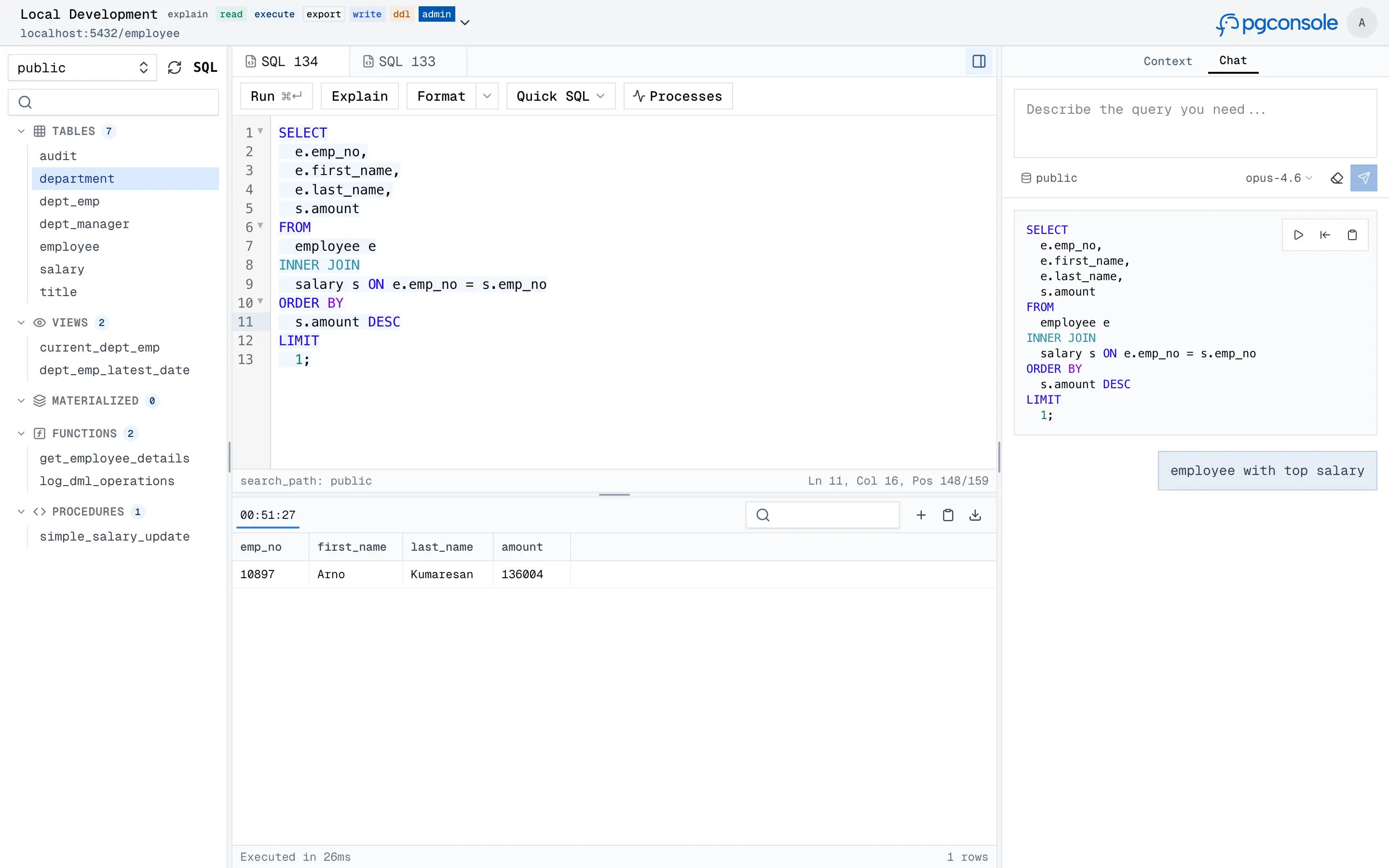
pgconsole's SQL editor is a workspace for writing queries, browsing schemas, and working with results. What sets it apart:
* **Understands your SQL** — syntax highlighting, autocomplete, formatting, error detection, and function signature help are all backed by a PostgreSQL parser, not regex.
* **Guardrails** — [database access control](/features/database-access-control) and [audit logs](/features/audit-log) ensure every query is authorized and recorded.
* **AI assistant** — generate, explain, fix, and rewrite SQL with an [AI assistant](/features/ai-assistant) that understands your schema context.
 ## Editor
### SQL Intelligence
The editor parses your SQL in real-time to provide:
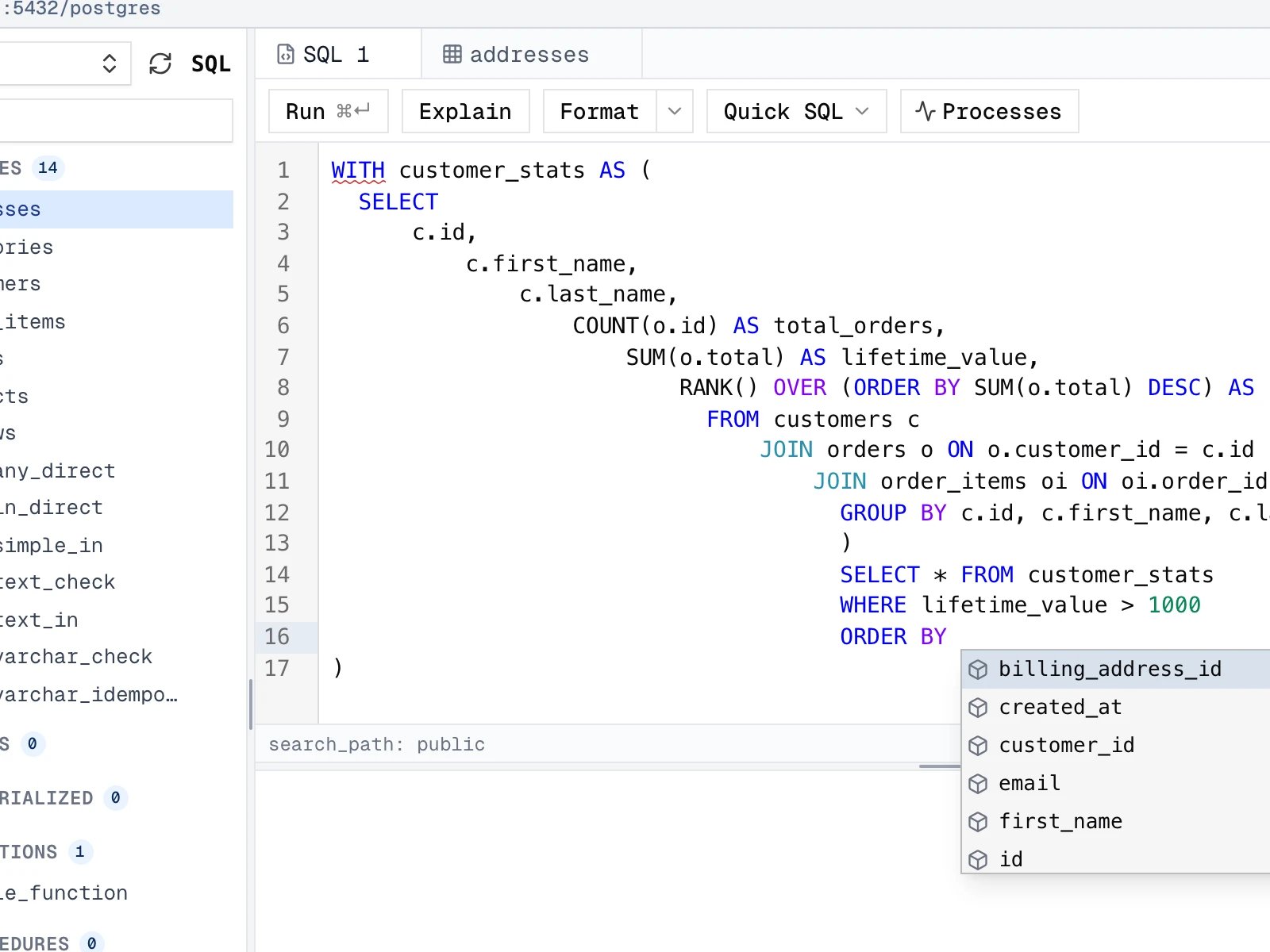
* **Autocomplete** — context-aware suggestions for tables, columns, joins, and CTEs (`Ctrl+Space`)
## Editor
### SQL Intelligence
The editor parses your SQL in real-time to provide:
* **Autocomplete** — context-aware suggestions for tables, columns, joins, and CTEs (`Ctrl+Space`)
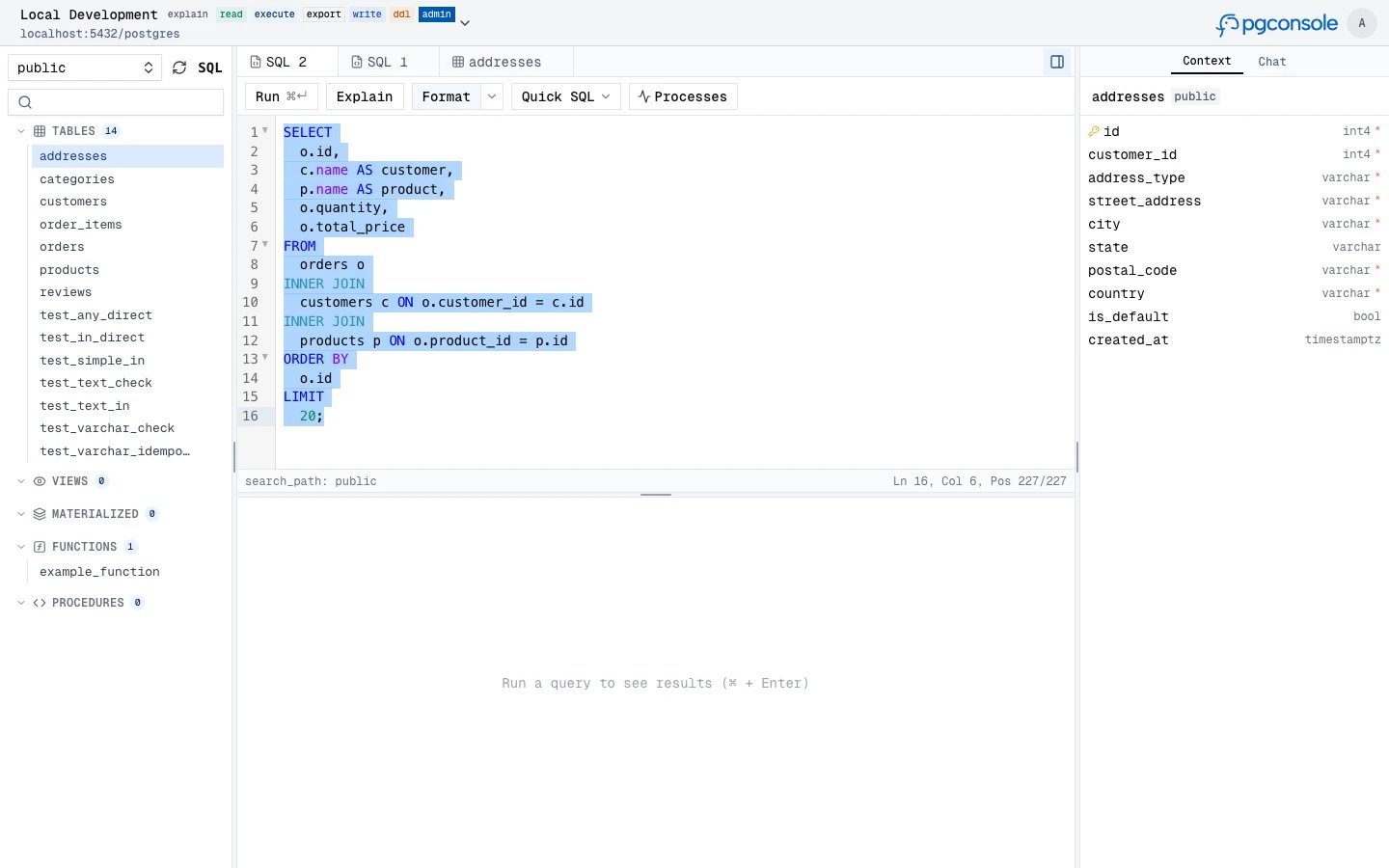
 * **Formatting** — pretty-print or collapse to one line
 * **Error detection** — red underlines with hover tooltips; optionally **Fix with AI**
* **Code folding** — collapse `SELECT`, `WITH`, and other blocks
### Quick SQL Generation
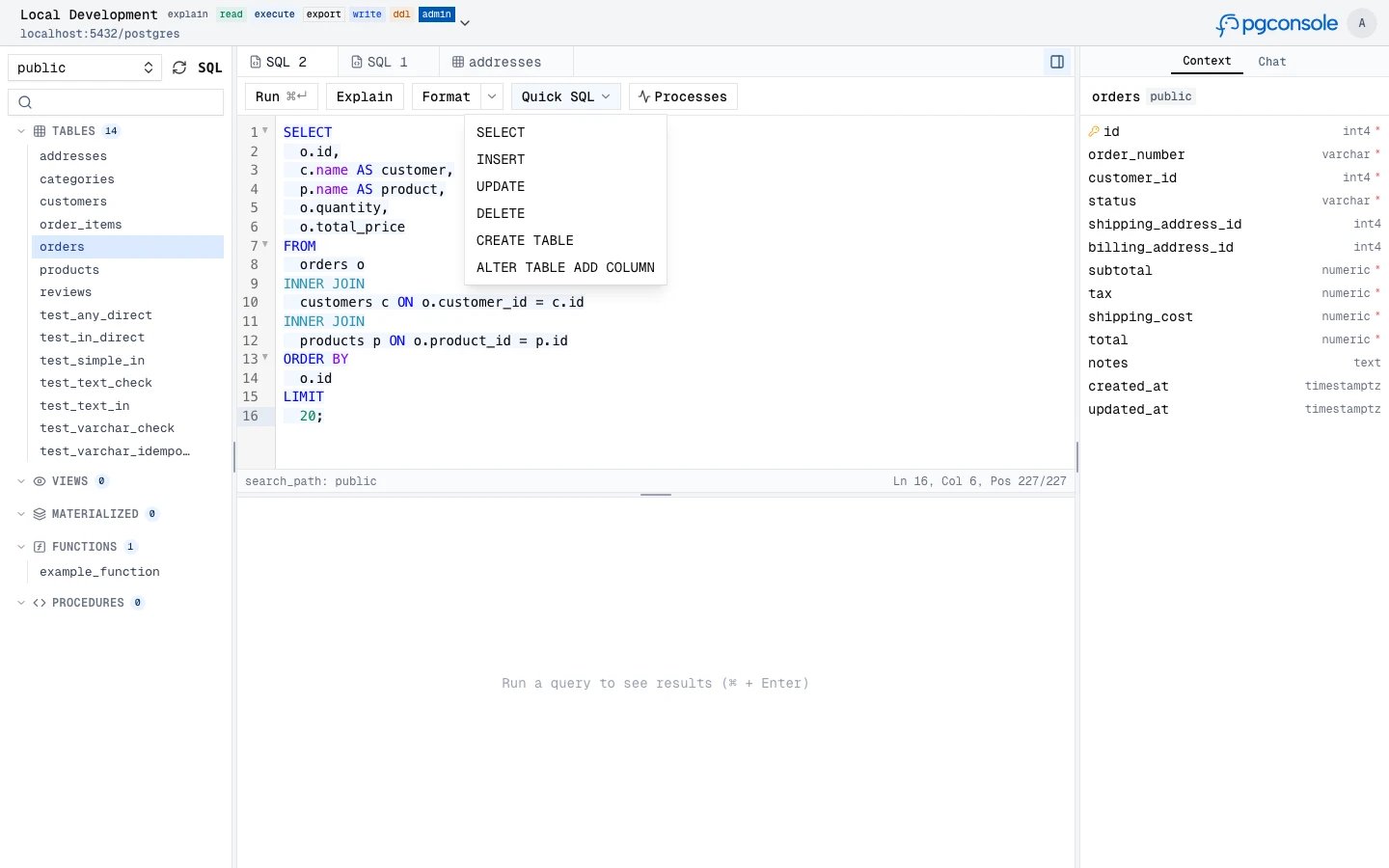
When a table or view is selected in the schema browser, the Quick SQL menu generates SQL templates and inserts them into the editor:
INSERT, UPDATE, DELETE, CREATE TABLE, and ALTER ADD COLUMN are only available for tables (not views).
* **Error detection** — red underlines with hover tooltips; optionally **Fix with AI**
* **Code folding** — collapse `SELECT`, `WITH`, and other blocks
### Quick SQL Generation
When a table or view is selected in the schema browser, the Quick SQL menu generates SQL templates and inserts them into the editor:
INSERT, UPDATE, DELETE, CREATE TABLE, and ALTER ADD COLUMN are only available for tables (not views).
 ## Data Grid
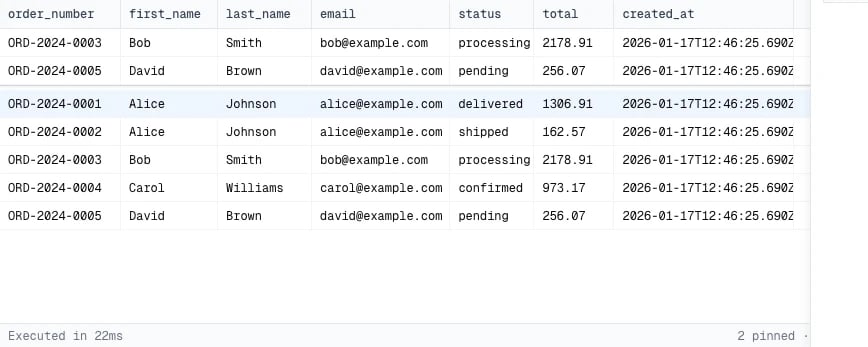
Query results appear in the panel below the editor in a virtual-scrolling grid that handles large result sets efficiently.
## Data Grid
Query results appear in the panel below the editor in a virtual-scrolling grid that handles large result sets efficiently.
 ### Navigation
| Action | Behavior |
| ------------------- | ----------------------------- |
| Click a row | Open the row detail panel |
| Double-click a cell | Start editing that cell |
| `j` / `↓` | Select next row |
| `k` / `↑` | Select previous row |
| `Space` | Pin or unpin the selected row |
Pinned rows stick to the top of the grid for easy comparison across large result sets.
### Inline Editing
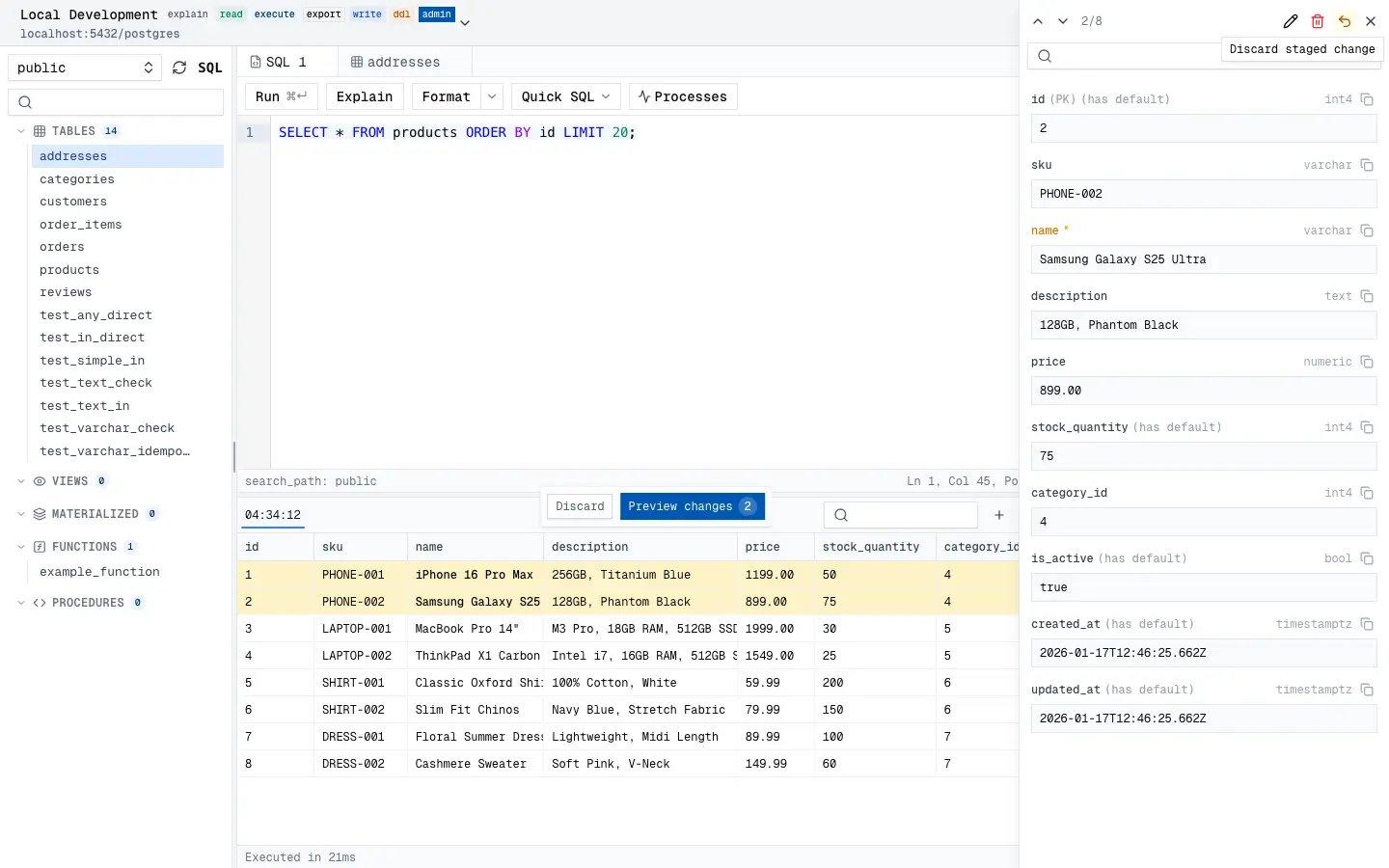
With `write` permission, you can modify data directly in the grid. All changes are staged locally — nothing is committed until you explicitly execute.
### Navigation
| Action | Behavior |
| ------------------- | ----------------------------- |
| Click a row | Open the row detail panel |
| Double-click a cell | Start editing that cell |
| `j` / `↓` | Select next row |
| `k` / `↑` | Select previous row |
| `Space` | Pin or unpin the selected row |
Pinned rows stick to the top of the grid for easy comparison across large result sets.
### Inline Editing
With `write` permission, you can modify data directly in the grid. All changes are staged locally — nothing is committed until you explicitly execute.
 | Action | How |
| --------------- | --------------------------------------------------------------------------- |
| Edit a cell | Double-click the cell, or click the row and press Edit in the detail panel |
| Add a row | Click the **+** button in the results toolbar |
| Delete a row | Right-click and select Delete, or use the Delete button in the detail panel |
| Duplicate a row | Right-click and select Duplicate (primary key fields cleared) |
Staged changes are color-coded: green for new rows (INSERT), amber for modified rows (UPDATE), red with strikethrough for deleted rows (DELETE).
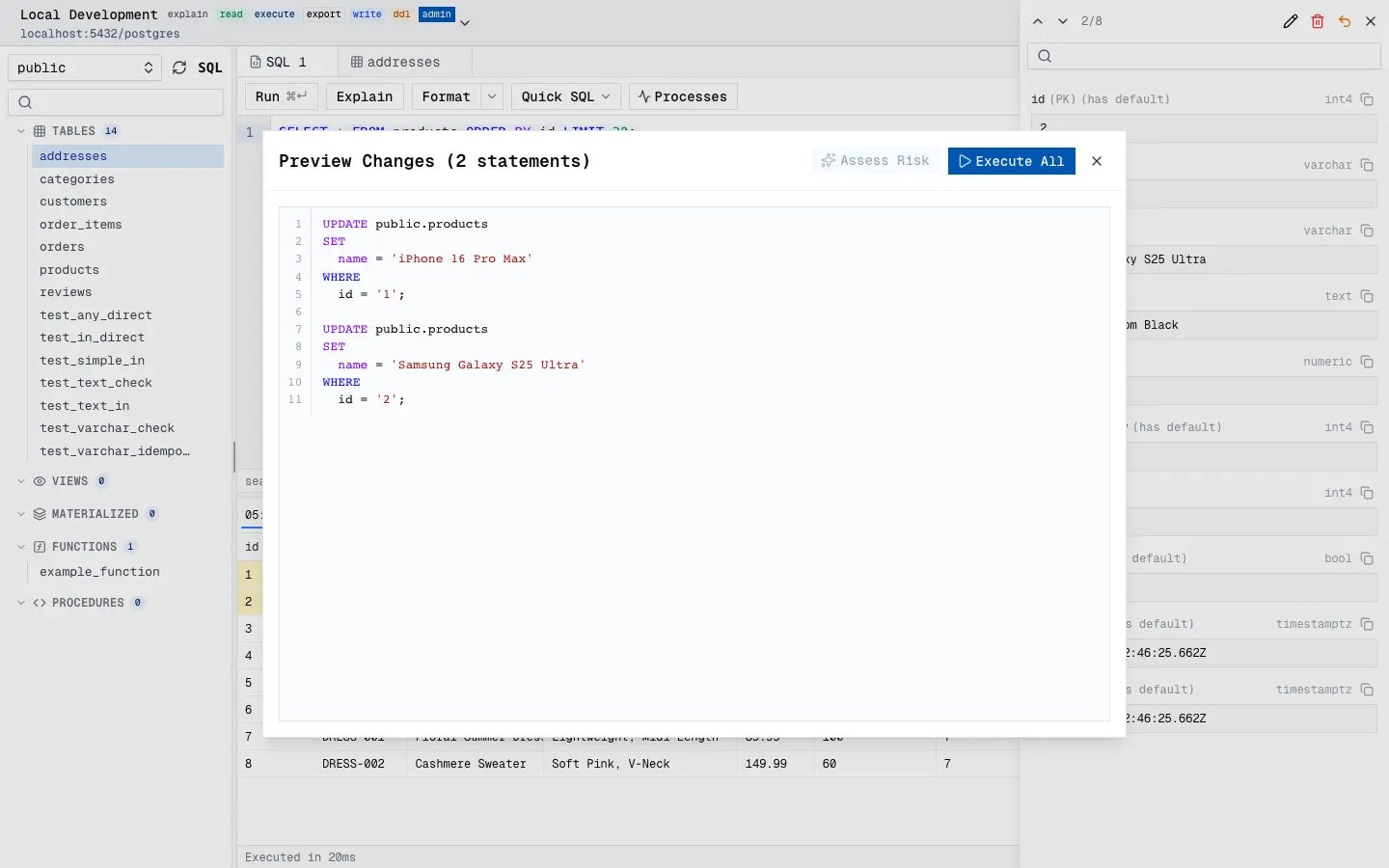
When changes are pending, a floating bar lets you **Preview** the generated SQL or **Discard** all changes. The preview modal shows syntax-highlighted INSERT/UPDATE/DELETE statements and optionally an AI-powered risk assessment before you **Execute All**.
| Action | How |
| --------------- | --------------------------------------------------------------------------- |
| Edit a cell | Double-click the cell, or click the row and press Edit in the detail panel |
| Add a row | Click the **+** button in the results toolbar |
| Delete a row | Right-click and select Delete, or use the Delete button in the detail panel |
| Duplicate a row | Right-click and select Duplicate (primary key fields cleared) |
Staged changes are color-coded: green for new rows (INSERT), amber for modified rows (UPDATE), red with strikethrough for deleted rows (DELETE).
When changes are pending, a floating bar lets you **Preview** the generated SQL or **Discard** all changes. The preview modal shows syntax-highlighted INSERT/UPDATE/DELETE statements and optionally an AI-powered risk assessment before you **Execute All**.
 ### Data Export
* **Export to CSV** — downloads visible rows as a CSV file (requires `export` permission)
* **Copy as Markdown** — copies results as a markdown table to the clipboard
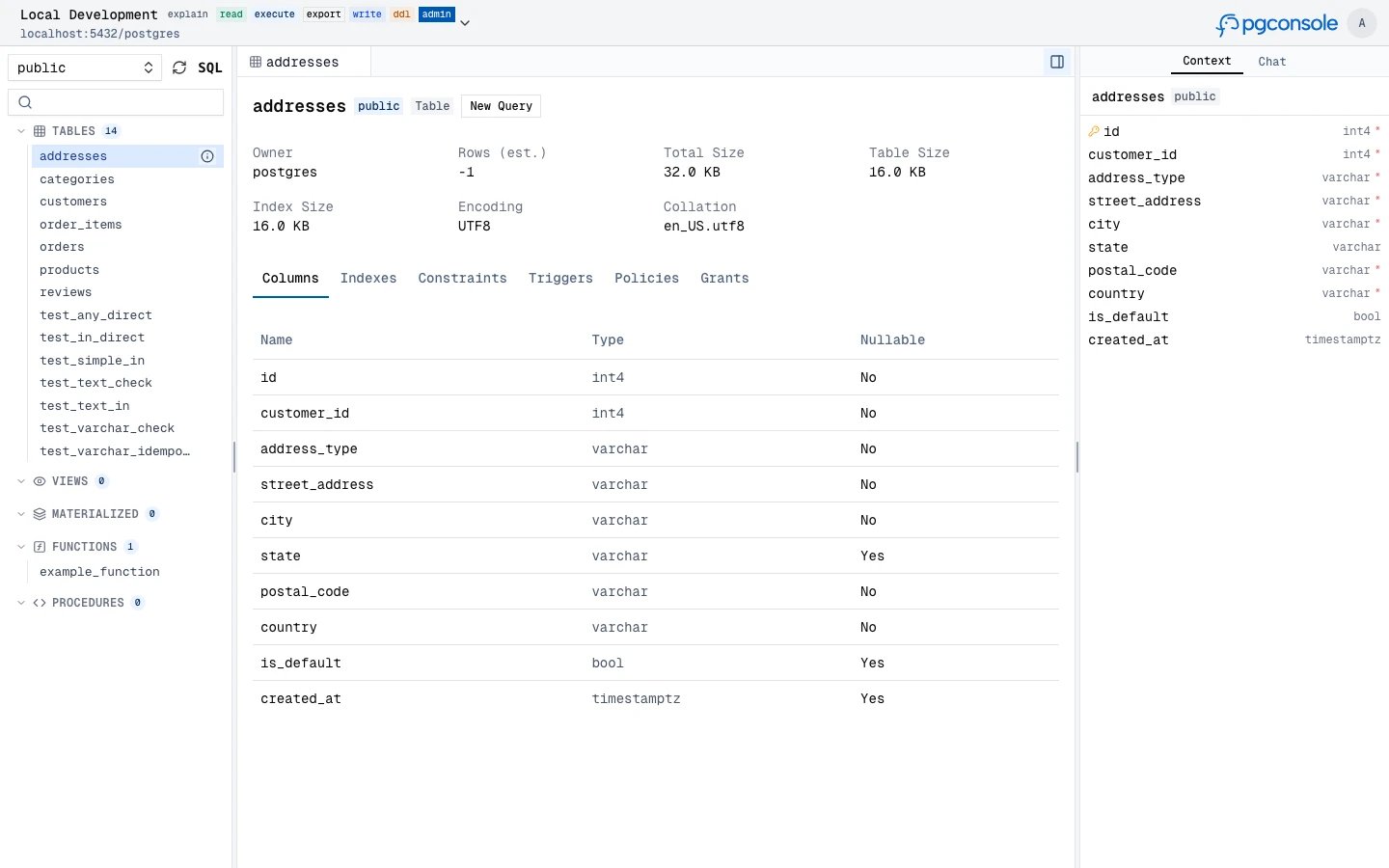
## Schema Inspection
Schema tabs provide detailed inspection of database objects.
### Data Export
* **Export to CSV** — downloads visible rows as a CSV file (requires `export` permission)
* **Copy as Markdown** — copies results as a markdown table to the clipboard
## Schema Inspection
Schema tabs provide detailed inspection of database objects.
 ## Active Sessions
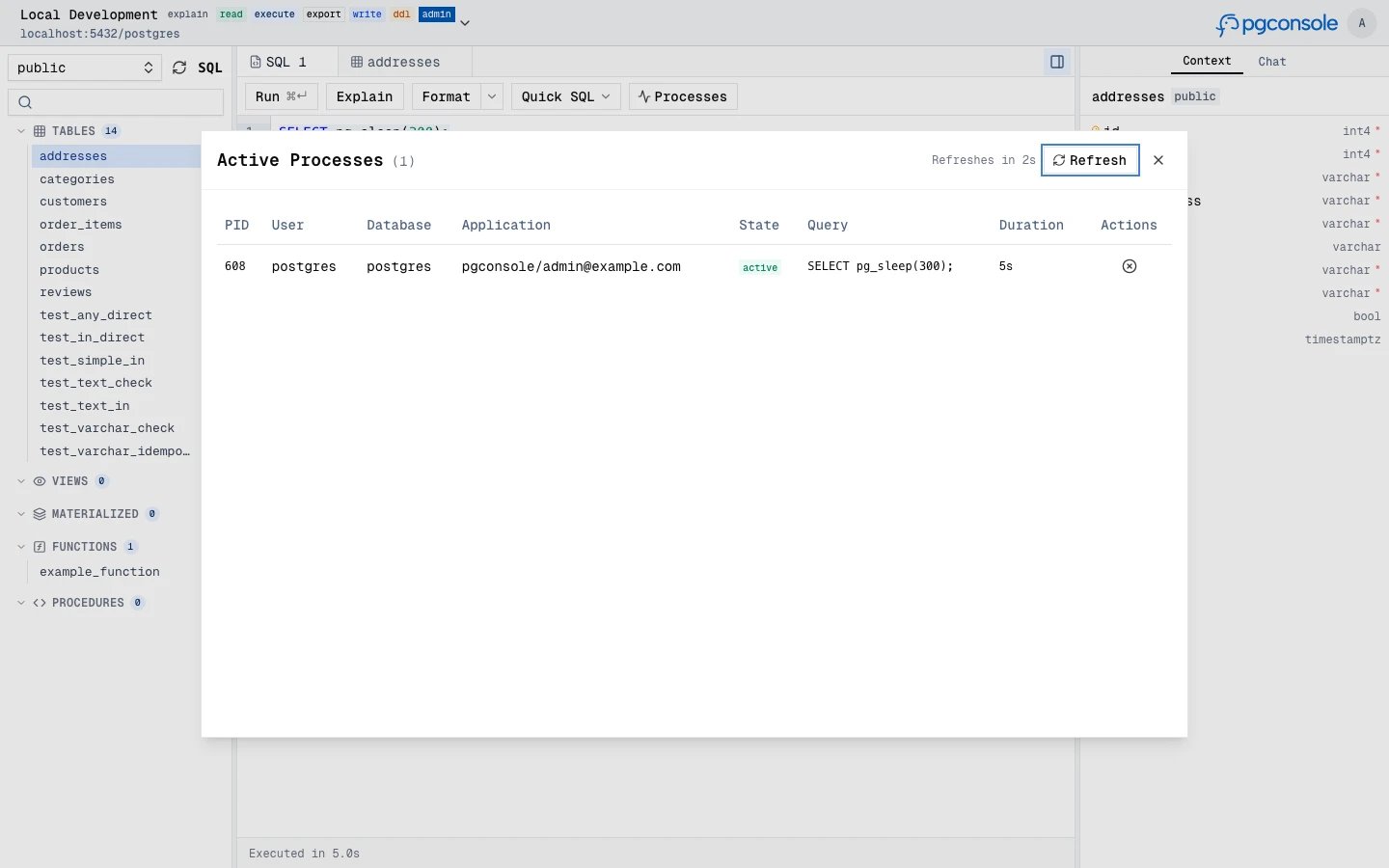
The Processes button in the toolbar opens a modal showing active database connections. The list auto-refreshes periodically. With `admin` permission, a **Terminate** button appears on each row with a confirmation countdown.
## Active Sessions
The Processes button in the toolbar opens a modal showing active database connections. The list auto-refreshes periodically. With `admin` permission, a **Terminate** button appears on each row with a confirmation countdown.